Snapshot - Theme Documentation
By Progression Studios
Thank you for purchasing this theme. If you have questions that are beyond the scope of this help file, visit our support forum.
Theme Installation
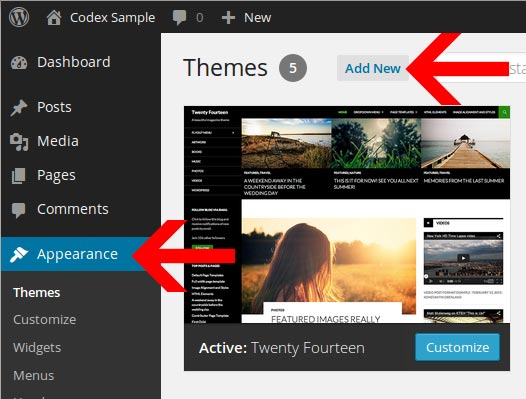
You can install Themes directly to WordPress by using the Add New Themes option in the Appearance sub-menu.
- Log in to the WordPress Administration Panels.
- Select the Appearance panel, then Themes.
- Select Add New.
- Then Select Upload Theme.
- You can then Install your Theme and Activate it.
Adding New Themes Manually (FTP)
To add a new Theme to your WordPress installation, follow these basic steps:
- Download the Theme archive and extract the files it contains. You may need to preserve the directory structure in the archive when extracting these files. Follow the guidelines provided by your Theme author.
- Using an FTP client to access your host web server, create a directory to save your Theme in the wp-content/themes directory provided by WordPress. For example, a Theme named Test should be in wp-content/themes/test. Your Theme may provide this directory as part of the archive.
- Upload the Theme files to the new directory on your host server.
Recommened Plugins
After installing your theme, you will be prompted to install a set if additional plugins. Click on the "Begin Installing Plugins" text link to install the plugins.
You will then view the "Install Required Plugins" page. You can also reach this page under Appearance > Install Plugins. You can select all the items and Bulk Install the plugins or install the plugins one at a time.
Note: We strongly recommend installing theses upon the initial installation. You can also deactivate and remove any plugins later on.
Import Demo Content
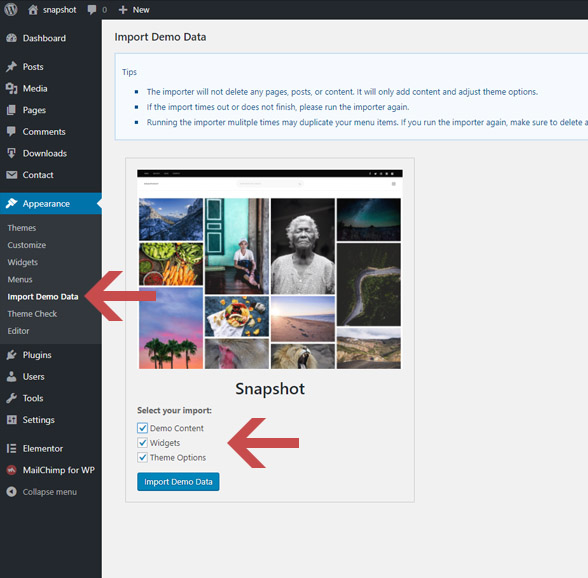
You can import the demo content under Appearance > Import Demo Data. Just click "Import Demo Data" and wait until the importer notifies you the import is completed. Please click import only once and wait, it can take a couple of minutes. If you click import mulitple times it will duplicate the menu items under Appearance > Menus. However the pages themselves will not be duplicated.
Importer FAQS
- Import doesn't complete or errors - If the import times out or does not finish, please run the importer again. Running the importer mulitple times may duplicate your menu items. If you run the importer again, make sure to delete any navigation menus under Navigation > Menus. You will not have delete any pages as those will not duplicate.
Important Note regarding the import process:
If you wish to use either the Relevanssi (search), Exifography (Display exif on posts), or Post View Counter (to display the post view count in the sidebar), you'll have to manually configure these plugins via the plugin settings. Make sure to follow the importing help video to get a better understanding of that part.
Theme Options
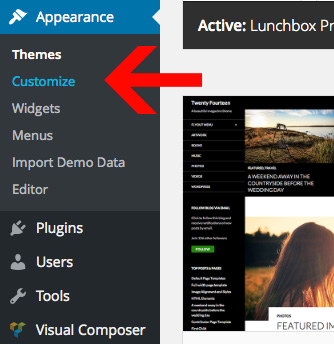
You can easily customize your the theme options under Appearance > Customize. This includes theme colors, fonts, and more!
Changing the Logo
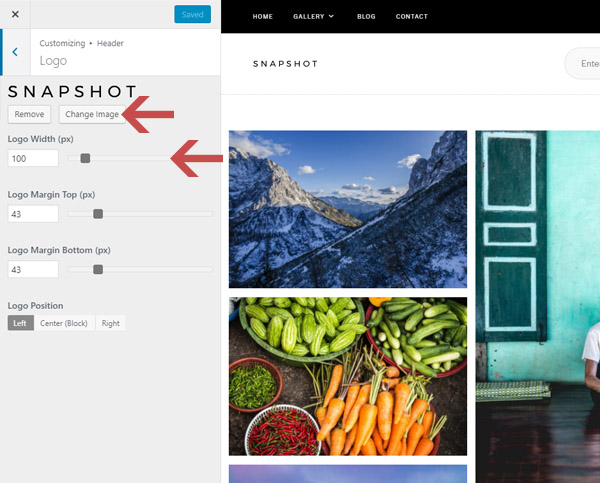
You can easily adjust the logo in the Theme Customizer(Appearance > Customizer) under section "Header" and sub-section "Logo".
To change your logo, click "Change Image" and choose your new logo. Make sure to adjust the "Logo Width" to match your logo.
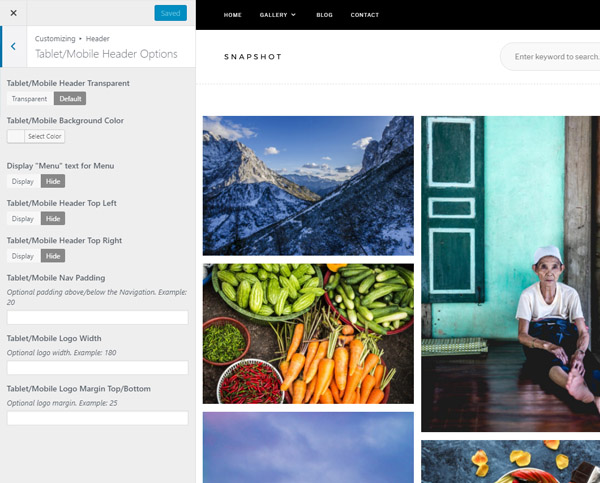
Changing the Tablet/Mobile Logo Size and Navigation Padding
You can also adjust the logo width and settings on mobile under in the Theme Customizer(Appearance > Customizer) under section "Header" and sub-section "Tablet/Mobile Header Options".
Changing the copyright text
You can easily adjust the copyright text under Appearance > Customize > Footer > Copyright Text.
Navigation Menu
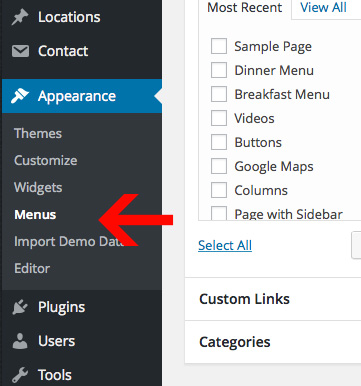
You can create & manage your navigation menus under Appearance > Menus.
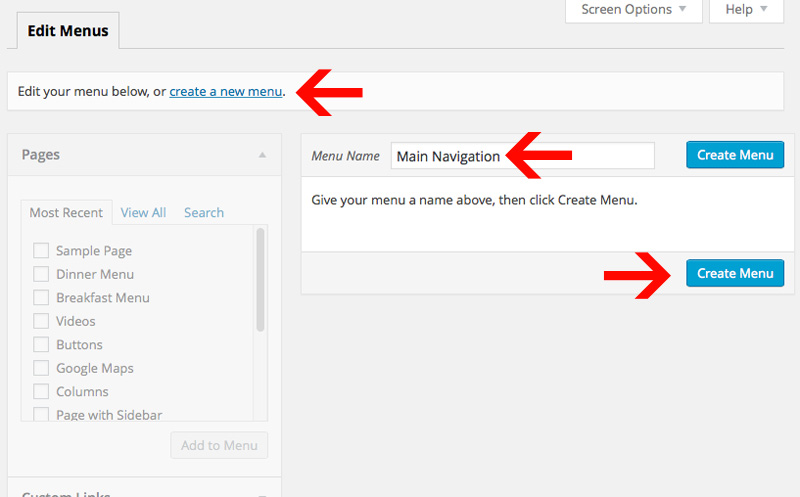
Step 1: Create a Menu
To start, create a new menu. You can click on text link "create a new menu". Then, enter in a menu name and click "Create Menu".
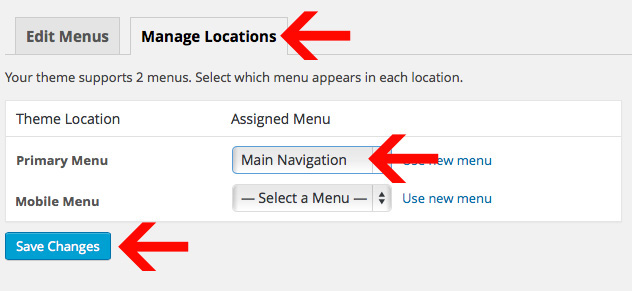
Step 2: Set the Menu Location
After you have created your menu, you need to select the Theme Location. You can do this by going under the "Manage Locations" tab at the top. Then select a menu under "Primary Menu" or "Mobile Menu" and click "Save Changes".
Step 3: Add pages to your Menu
You can then start adding pages and links to your menu. After you click "Add to Menu", it will move the menu item menu on the right. You can drag menu items around to order them. Or customize/delete the menu items by clicking on the down arrow on the right. Make sure to save the menu when you are done editing it.

Adding Sub-menus
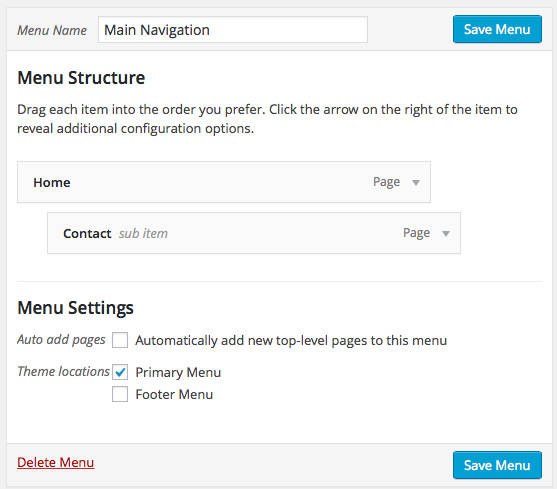
You can make multiple level's of sub-menus. All you need to do is drag the menu item that you want inside the sub-menu under-neath the parent menu item. There will be an option to indent the item, so that the sub-menu item looks like it is pushed inside of the parent menu item. See example, "Contact" is in a sub-menu of the parent page "Home":
Adding Menu Icons
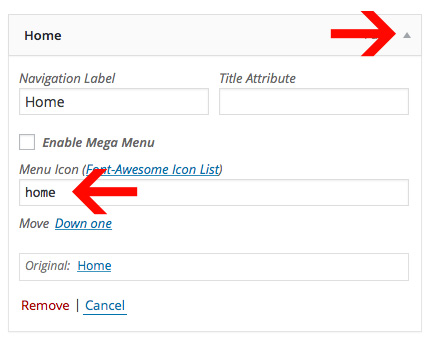
You can easily add-in a menu icon by clicking the small down-arrow and editing the menu item.
You can get a list of avaialble icons here: http://fortawesome.github.io/Font-Awesome/icons/. Just pick an icon and then type in the name of the icon in the "Menu Icon" field.
Adding Mega-Menu's
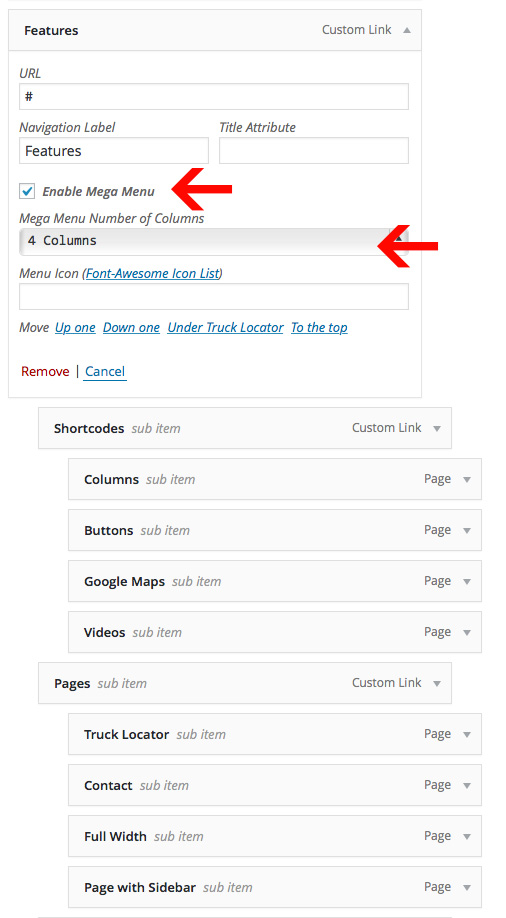
You can easily add-in support for mega-menus by clicking the small down-arrow and editing the menu item. Just click "Enable Mega Menu" and then choose the ammount of columns you want to use for your mega menu.
The first sub-menu level is going to be the heading for the column (Use Custom Link with "#" added in for the URL). The next sub-level will display the navigation item. Here is an screen-shot example of how the live preview menu is setup:
Page Builder
This theme is powered by the page builder "Elementor". We also have a page builder add-on called "Boosted Elements".
Check out the Boosted Elements documentation here: http://boosted.progression-studios.com/documentation/
Using the Page Builder
You can edit pages in the page builder by clicking the "Edit with Elementor" button.
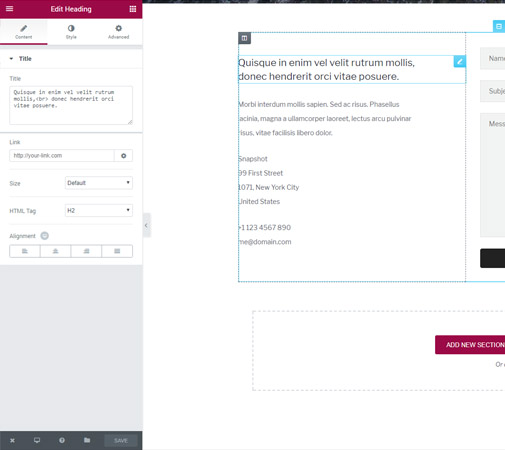
From there you can add new Elements or editing elements by clicking on them. Just select an element and then the panel on the left will display options:
Adding Elements
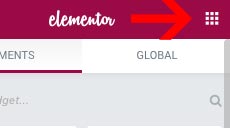
You can add new elements by clicking the icon. From there you get a list of elements. Choose any element and drag it onto your page where you want it

Adding Pre-Saved Templates
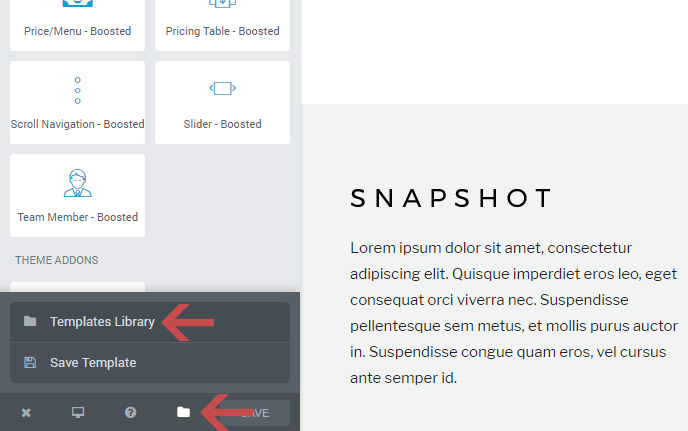
We have saved all the tempaltes from the live preview for you. In addition there are many other templates available that can be be used to re-create various pages or sections of the site. Click on the tempaltes library button to open the layout options:
Templates can be used to re-create various pages or sections of the site. Click on the layouts button to open the layout options:
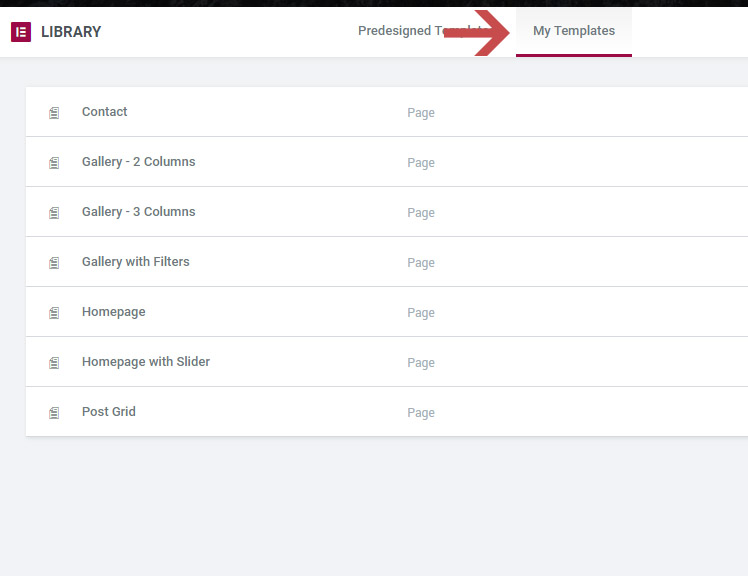
Then click on the "Default Templates" tab in order to see all the built-in templates.
Page Options
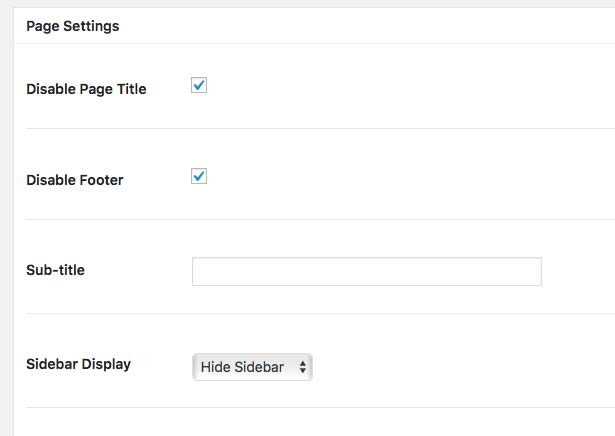
You have additional page options at the bottom which can be used to adjust the sidebar display and header display.
Homepage Slider
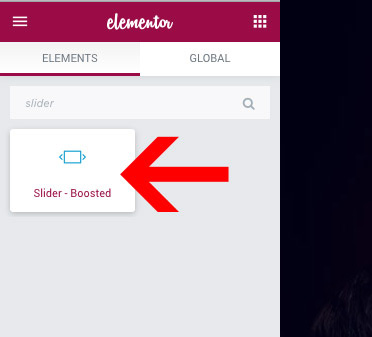
The homepage slider is created the Page Builder Element "Slider - Boosted"
Remove Page Title from your page
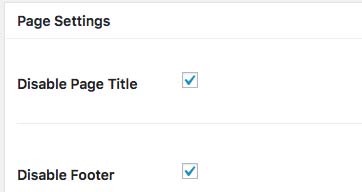
You can remove the page title by editing the Page Settings at the bottom of each page:
Slider Styles + Tablet/Mobile Options
Control various styles of your slider under the "Style" section.
Furhtermore you can edit Desktop, Tablet, and Mobile styles by clickign on the grey desktop icon. Then click on the tablet or mobile to open that specific editor.

Contact Form
The contact forms are powered by the plugin Contact Form 7. It has many additional options which you can find in the full Contact Form 7 documentation here: https://contactform7.com/docs/
The contact forms are managed under "Contact" in your WordPress Dashboard. From there you can edit the existing contact forms by hovering of them.
Adding Contact Form to any Page:
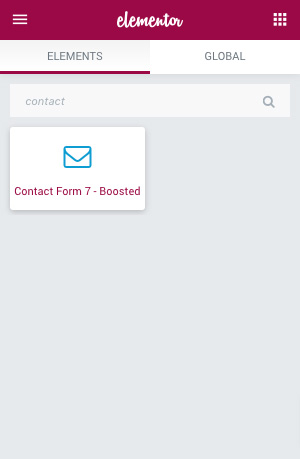
You can add Contact Forms onto any page using the Contact Form 7 page builder element
eCommerce
The eCommerce functionality is powered by "Easy Digital Downloads". Check out the full EDD documentation here: http://docs.easydigitaldownloads.com/
Creating "Download" Posts
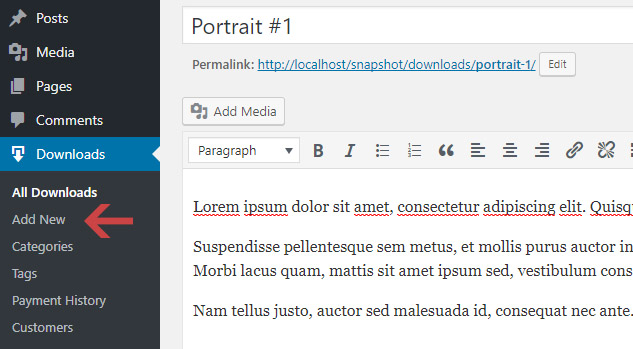
To add a new download post, click on Downloads > Add New. To add the images, make sure to upload a "Featured Image" for each post. You can apply watermarks on these images and then simply upload a zipped file into the "Download Files" area, if you wish to block users from accessing your full images before the purchase.
Default Image Sizes
The default image width for the index is 800px, while the default size for the single download page is 900px. Both of these image sizes do not have a limited height, so you can have both landscape and portrait images on your index. You can however change any of these sizes by editing the functions.php file.
Regenerating image sizes after adjusting settings
After changing these settings you may need to regenerate your thumbnails. You can do this with this plugin: http://wordpress.org/extend/plugins/force-regenerate-thumbnails/
Download Pricing Options
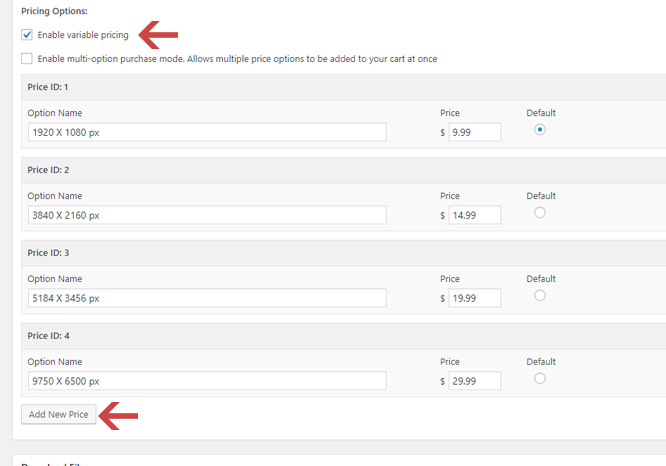
You can easily add multiple product pricing depending on custom attribute (e.g. image size in pixels).
eCommerce Options (Columns, Posts Per Page)
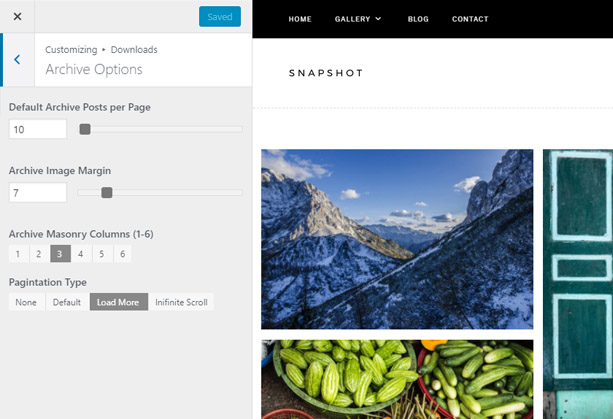
You can adjust the eCommerce archive pages options under Appearance > Customize > Downloads
Blog/News
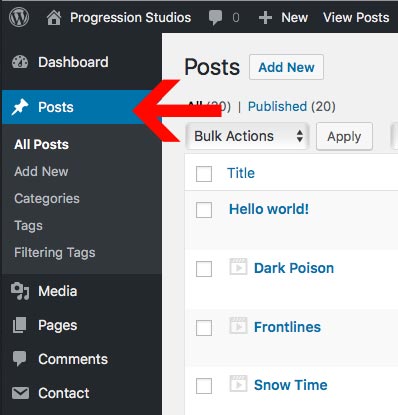
The videos and blog are all a managed under "Posts" in WordPRess:
Adding an Excerpt (Summary text on index)
You can control which text displays on the index. This is what we use in the live preview to display a snippet of text on the post list.
On the post edit screen, click on the screen options tab on the top right and then select excerpt.
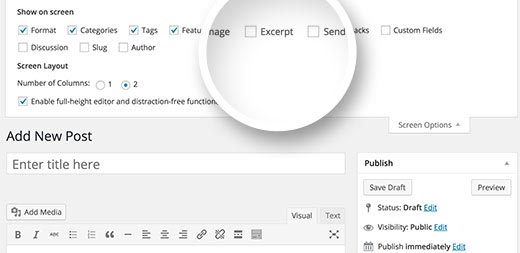
This will display an excerpt meta box below your post editor. You can now add any text in this box, and it will be used as the excerpt for the post.
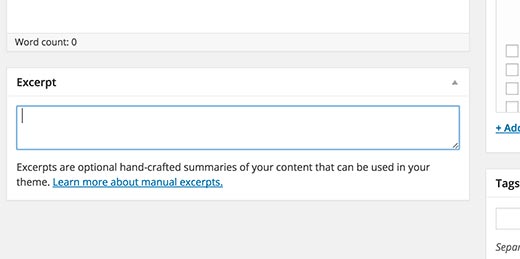
Altnerative to Excerpt: Adding the 'Continue Reading' Button (Cut-off content on index)
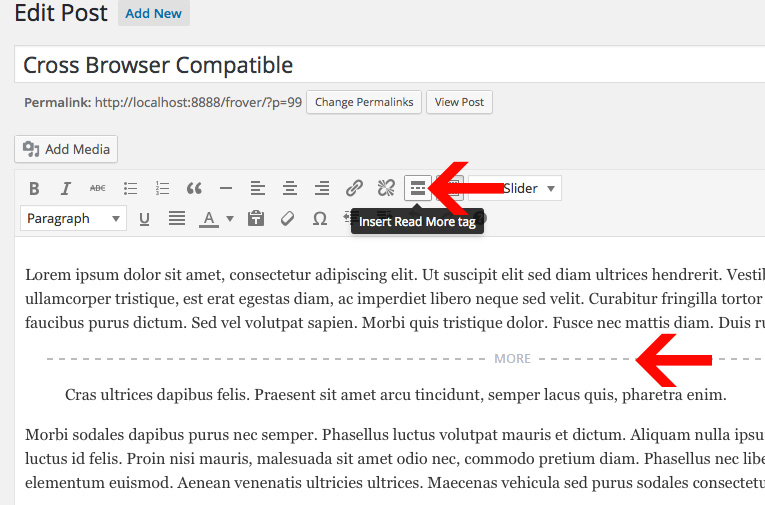
By default the blog-posts on the blog index will display all content. If you want to cut-off the blog-post on the index earlier, you will use the "Insert More" tag. The information above the break will be displayed on the Blog Index and all other information will be displayed on the post page. You can find the button for in default text editor as shown in the example.
Adding a Featured Image
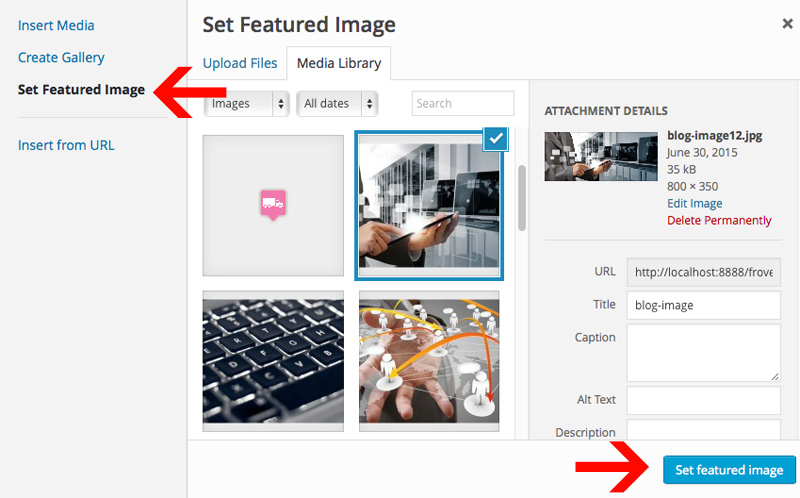
Just click "Add Media" and upload the image. Then click "Set Featured Image" and select your image. The last step is to click "Use as featured image". See the example below.
Adding an Image Gallery
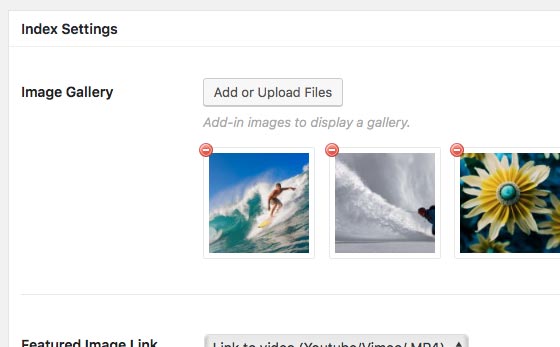
You can add an image gallery by editing the "Post Settings" at the bottom of the post. Just click "Add New" under the Image Gallery and add-in as many images as you need.
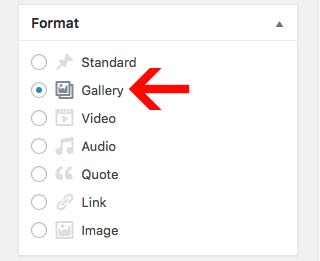
Then make sure to select the Post Format "Gallery".
Adding audio/video to your Post
You can add a song or video by editing the "Post Settings" at the bottom of the post. Just copy/paste your URL or embed code into the meta-box flabeled "Audio/Video Embed".
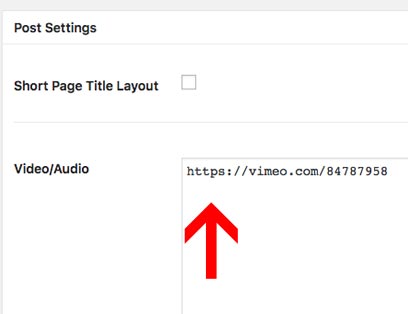
Then make sure to select the Post Format "Video or Audio".
Changing number of blog posts per page (Effects Archives/Categores)
Changing the number of blog posts that display on the index is just a matter of going to Settings > Reading.
Footer & Sidebar
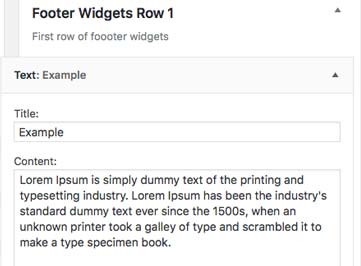
The footers and sidebars are controlled by widgets. You can edit these areas under Appearance > Widgets. Just drag/drop in a widget into the widget area. Here is an example of the Footer Widgets from the live preview:
Copyright Text & Additional Options
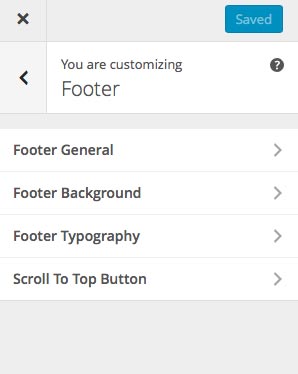
You can edit the footer copyright text under the Theme Options (Appearance > Customize). The footer settings are located under "Footer".
Sidebar
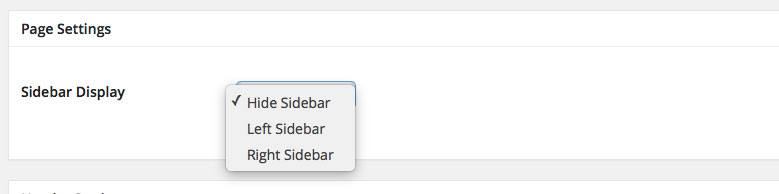
You can turn on the sidebar while editing any page under "Page Settings" at the bottom.
Google Maps API Key
As of June 22, 2016 Google has started to require an API key to use Google Maps on your site. Don't worry as this is still free. You just need to register with Google and get a free API key. Then paste the key into our theme.
Step 1) Register and get an API Key here: https://developers.google.com/maps/documentation/javascript/get-api-key

Step 2) Login to your WordPress site and add your API key into your theme customizer. (Appearance > Customize > Google Maps)

Translating
This theme is ready to be translated to any language. The easiest way to translate is via a Translation WordPress Plugin. Check out wordpress.org for a list of translation plugins. Our current recommendation is the plugin Loco Translate
You can learn more about translating WordPress via the Translating WordPress Documentation.
Need to support Multiple Languages?
Here are some of the Multilingual WordPress Plugins that will allow you to add multiple languages:
- Manage multilingual posts in one post per language (e.g. WPML - paid, xili-language, Polylang or Bogo). Translations are then linked together, indicating that one page is the translation of another.
- Store all languages alternatives for each post in the same post (e.g. qTranslate).
- Manage translations on the generated page instead of using a post context (e.g. Transposh and Global Translator)
- Plugins that direct you to external translation services (e.g. Google AJAX Translation)
- Plugins like Multisite Language Switcher, Multilingual Press, and Zanto, link together separate WordPress network (multisite) installations for each language by pinging back and forth.
Missing Font Characters
If you notice any font characters missing, you will need to select additional Font Subsets. You can manage this under Appearance > Customize under the Typography tab.
Note: Some fonts do not support all font sub-sets. If your font does not support your language, you will need to choose another font that supports your font characters.
Customizations
Any questions regarding customizations of themes are not included in theme support. It is up to the buyer to make any necessary customizations they need. If you would like to hire us for custom development, please contact here: http://progressionstudios.com/contact/
If you have questions that are beyond the scope of this help file, visit our support forum.
Tips on Customizing CSS
If the customization you want to change isn't listed in the Theme Customizer, check the style.css file. We have a table of contents at the top that points out all of the sections within theme. You can also look-up styles using FireBug for FireFox or Safari/Chrome Inspector. This will allow you to edit additional places within the theme.
How to use Firebug for Firefox to look-up styles in the style.css file: https://www.youtube.com/watch?v=6eTW8-C6_gk
How to use Inspector for Safari & Chrome to look-up styles in the style.css file: https://www.youtube.com/watch?v=nOEw9iiopwI